
How To Retrieve A Forgotten Password
In most cases, it is very common to forget a password or two. Luckily Zencam has made retrieving your password quick and painless. For assistance in retrieving your forgotten Zencam application password, please follow this easy step by step instruction:
Step 1: On your mobile device or tablet, please load the Zencam security application which you have downloaded from the App or Google Play Store.
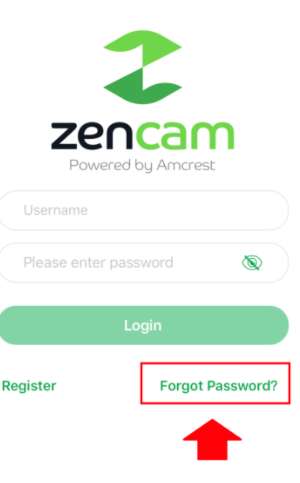
Step 2: Once the application is loaded, please select "Forgot Password?" located on the log in menu.
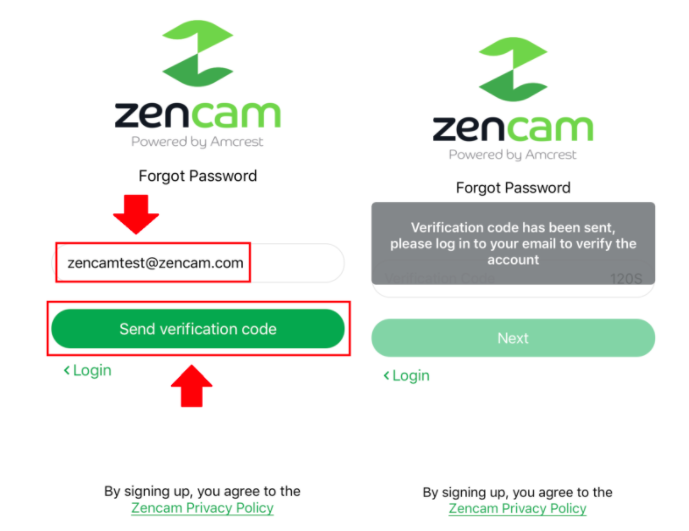
Step 3: On this screen you will be prompted to submit a verification code. For security reasons, Zencam will generate an automatic verification code that upon submission, will be sent to the username listed on your account. Please enter the username associated with your account and then click, "Send verification code" to receive your code.
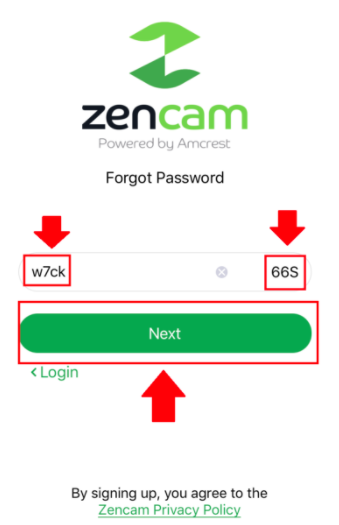
Step 4: Once you have received your verification code that was sent to your email, please enter the code into the specified field and press "Next".
Note: You will have approximately 120 seconds to enter your code before it expires. The expiration countdown will begin once the code has been sent to your email address.
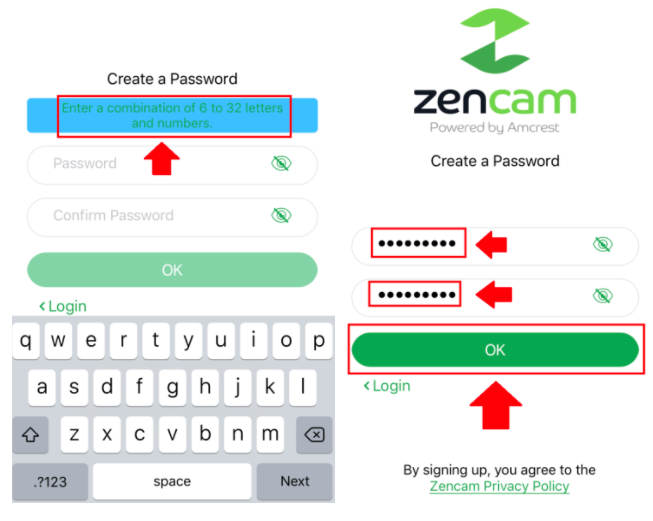
Step 5: When the verification code entered is validated you will then be able to create a new password. The password must be a combination of 6 to 32 letters and numbers to be excepted by the system. Once the new password is created, please press "OK" to continue.
Step 6: When you have successfully entered a new valid password you will then be prompted that the password reset was complete.

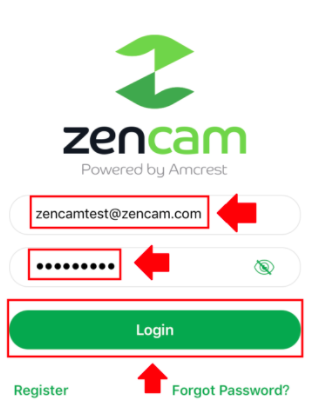
Step 7: When the reset process is complete, you may now enter the new login credentials for your account. Please enter the email address (username) associated with your account and the new password into the provided fields and press "Login".
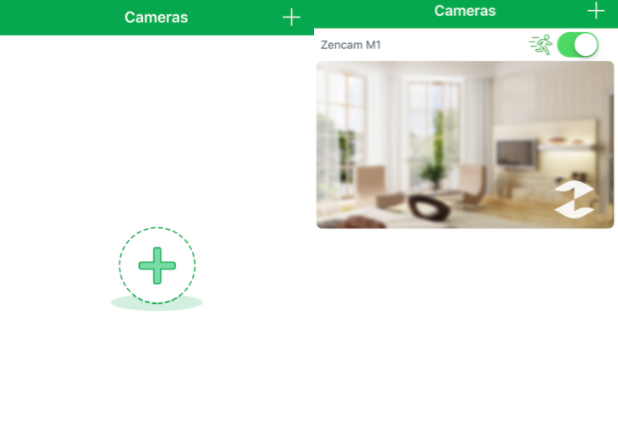
When the process is complete, and you are logged into your application, you may then be aloud to setup new cameras or access existing cameras.
Comments
Please sign in to leave a comment.